
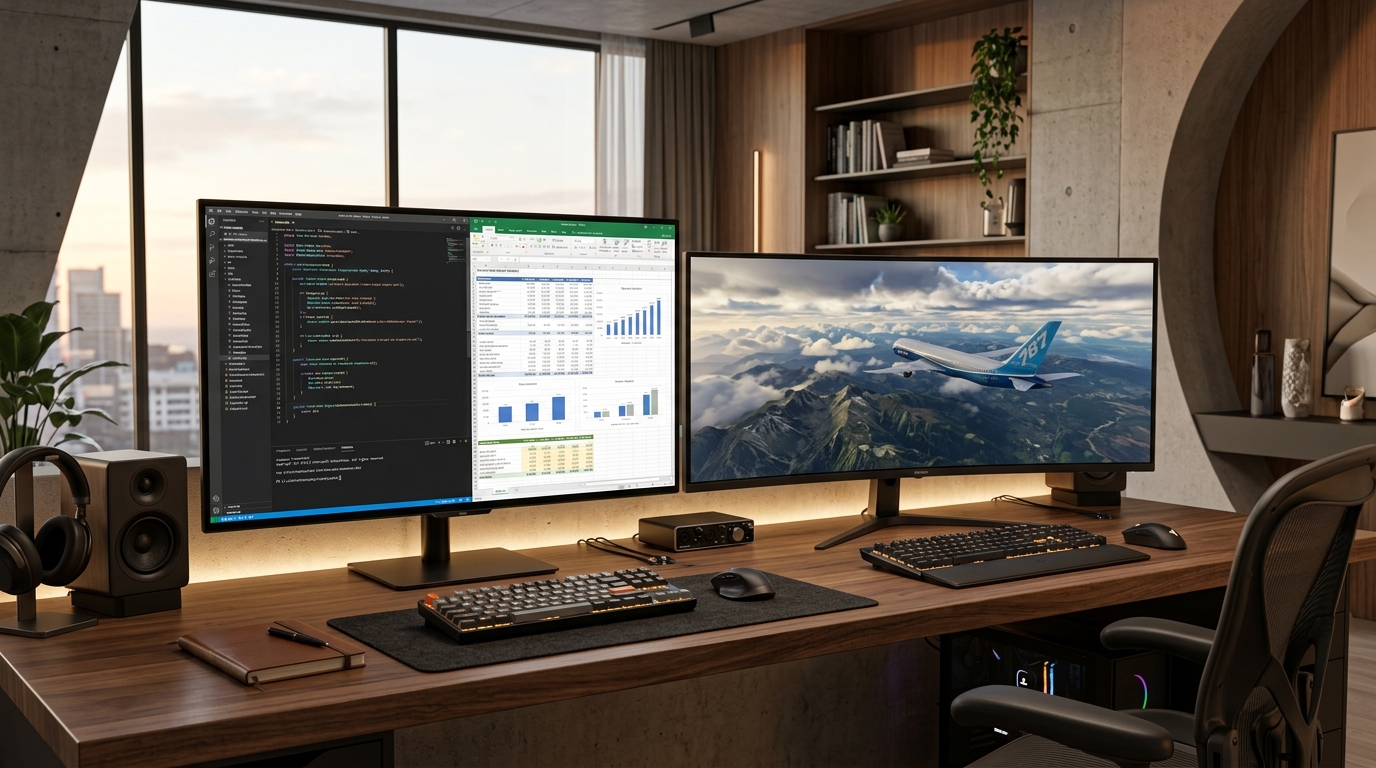
When upgrading to a premium desktop display in 2026, the $600 to $1,200 monitor market has converged on two dominant form factors: a 32-inch 4K UHD (3840×2160, 16:9) panel or a 34-inch curved UWQHD (3440×1440, 21:9) ultrawide. Both represent massive visual upgrades over standard 27-inch 1440p screens. Yet they prioritize completely different aspects of computing: 4K delivers unmatched text clarity and vertical screen real estate for coding and professional applications; ultrawide delivers unmatched peripheral immersion in PC gaming and timeline-based workflows without bezels.
- Pixel Density & Text Clarity: 32-inch 4K provides 138 PPI (Pixels Per Inch), delivering razor-sharp subpixel font rendering on macOS and Windows with zero font blur. 34-inch 1440p ultrawide provides 110 PPI, identical to a standard 27-inch 1440p monitor.
- GPU Rendering Overhead: 4K UHD drives 8.29 million pixels per frame. 1440p Ultrawide drives 4.95 million pixels per frame. Ultrawide is approximately 40% easier to drive, sustaining higher frame rates on mid-range GPUs.
- Console Compatibility: Modern consoles (PS5 and Xbox Series X) natively support 16:9 4K output with HDR and VRR. Neither console supports ultrawide 21:9 aspect ratios, leaving pillarboxed black bars on the sides.
4K vs. 1440p Ultrawide: Which Is Better for Gaming & Productivity?
Choose 32-inch 4K (16:9) for razor-sharp text clarity (138 PPI), vertical productivity in software engineering and documents, and native 4K console gaming. Choose 34-inch 1440p Ultrawide (21:9) for immersive PC simulation and racing games and horizontal timeline editing, requiring 40% less GPU rendering power than 4K to sustain high frame rates.
Your resolution choice dictates both your daily optical comfort and the graphics horsepower required to power your system. When reading documentation, compiling code in VS Code, or editing high-resolution photography, the 138 PPI density of 4K renders subpixel typography with zero fringing. Conversely, 1440p ultrawides excel in peripheral immersion, filling your field of view in titles like Cyberpunk 2077, Microsoft Flight Simulator, and Assetto Corsa.
| Display Metric | 32″ 4K UHD (3840×2160 / 16:9) | 34″ 1440p Ultrawide (3440×1440 / 21:9) | Category Winner |
|---|---|---|---|
| Total Pixel Count | 8,294,400 pixels | 4,953,600 pixels | 4K (+67% more pixels) |
| Pixel Density (PPI) | 137.7 PPI (Retina-grade) | 109.7 PPI (Standard sharpness) | 4K (Superior text sharpness) |
| GPU Render Demands | Heavy (Requires RTX 4080 / 5080) | Moderate (Great on RTX 4070 / 5070) | Ultrawide (+40% higher FPS) |
| Aspect Ratio & Field of View | Standard 16:9 | Cinematic 21:9 (+33% width) | Ultrawide (Immersion) |
| Console Gaming (PS5/Xbox) | Native 4K HDR 120Hz support | Pillarboxed (Black bars on sides) | 4K (Full console support) |
Is 1440p Ultrawide Harder to Run Than 4K? GPU Performance & VRAM Demands
No. 1440p Ultrawide (3440×1440) renders approximately 4.95 million pixels per frame, making it roughly 40% easier to drive than 4K UHD (3840×2160, 8.29 million pixels). Mid-tier GPUs like the RTX 4070 or RTX 5070 comfortably handle 1440p ultrawide at high framerates, whereas native 4K demands an RTX 4080/5080 class card.
Frequently Asked Questions: 4K vs. 1440p Ultrawide Displays
Is 4K better than 1440p ultrawide?
4K is superior for text clarity, high-density productivity, and console gaming due to its 138 PPI pixel density and standard 16:9 aspect ratio. 1440p ultrawide is superior for PC gaming immersion and wide horizontal multitasking, with 40% lower GPU demands.
Is 1440p ultrawide harder to run than 4K?
No. 1440p ultrawide (4.95M pixels) requires 40% less graphical rendering power than 4K UHD (8.29M pixels). You will achieve substantially higher frame rates on mid-range GPUs like the RTX 4070 or 5070 on an ultrawide.
Does PS5 or Xbox support 1440p ultrawide monitors?
No. Neither the PlayStation 5 nor Xbox Series X supports 21:9 ultrawide aspect ratios. When connected to an ultrawide monitor, the console outputs a standard 16:9 image with pillarboxed black bars on the left and right sides.
Is 34-inch ultrawide the same height as 27-inch 1440p?
Yes. A 34-inch 21:9 ultrawide monitor has the exact same vertical height and pixel density (109.7 PPI) as a standard 27-inch 16:9 1440p display, with approximately 33% extra horizontal screen width.