
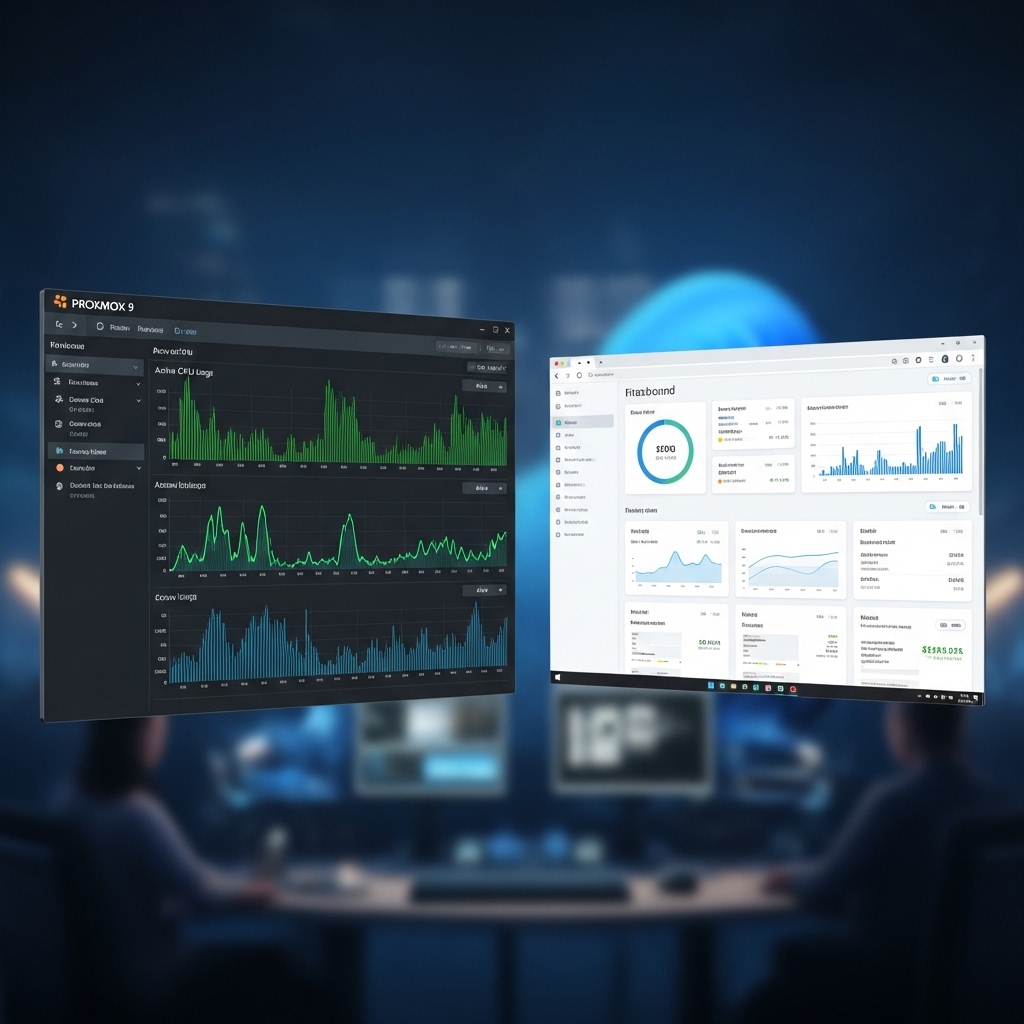
For the modern data professional or financial analyst, local hardware is often a limitation. Running a Windows 11 Virtual Machine on Proxmox 9.x allows you to centralize your heavy workloads—like massive Excel models or local AI-assisted analysis—on a powerful server while accessing it from a lightweight laptop. To get “near-native” performance in 2026, you must look beyond the default settings.
1. The Prerequisites: TPM 2.0 and UEFI
Windows 11 in 2026 remains strict about security requirements. When creating your VM in Proxmox 9, you must select OVMF (UEFI) as the BIOS and add a vTPM (Virtual TPM) device. This ensures full compatibility with Windows Update and BitLocker. We recommend storing the EFI and TPM state on your fastest PCIe Gen 6 NVMe pool to ensure instant boot times.
2. Performance Tuning: VirtIO and Processor Type
The secret to a lag-free Windows VM is the VirtIO driver suite. Without these, Windows emulates slow IDE/SATA controllers and basic networking.
- Disk: Use
SCSIwith theVirtIO SCSI singlecontroller. EnableDiscardandIO Threadfor SSD optimization. - Network: Use the
VirtIO (paravirtualized)bridge to take full advantage of your 10GbE network backbone. - CPU: Set the Type to
host. This passes the full instruction set of your CPU (like AVX-512 on newer Intel/AMD chips) directly to Windows, which is critical for heavy data processing.
3. Remote Access: Tailscale and RDP Optimization
In 2026, the best way to use this VM is via Remote Desktop (RDP) over a secure tunnel. By using our Tailscale Security Guide, you can RDP into your Windows VM from anywhere in the world with zero latency. For the smoothest experience, ensure you have allocated at least 8GB of RAM and enabled “Hardware Accelerated GPU Scheduling” if you have passed through a GPU.
Windows 11 Proxmox Optimization Metrics
| Configuration | Boot Time | IOPS Performance |
|---|---|---|
| Default Settings (IDE) | 45-60 Seconds | Baseline |
| VirtIO Optimized | 8-12 Seconds | +300% Improvement |