
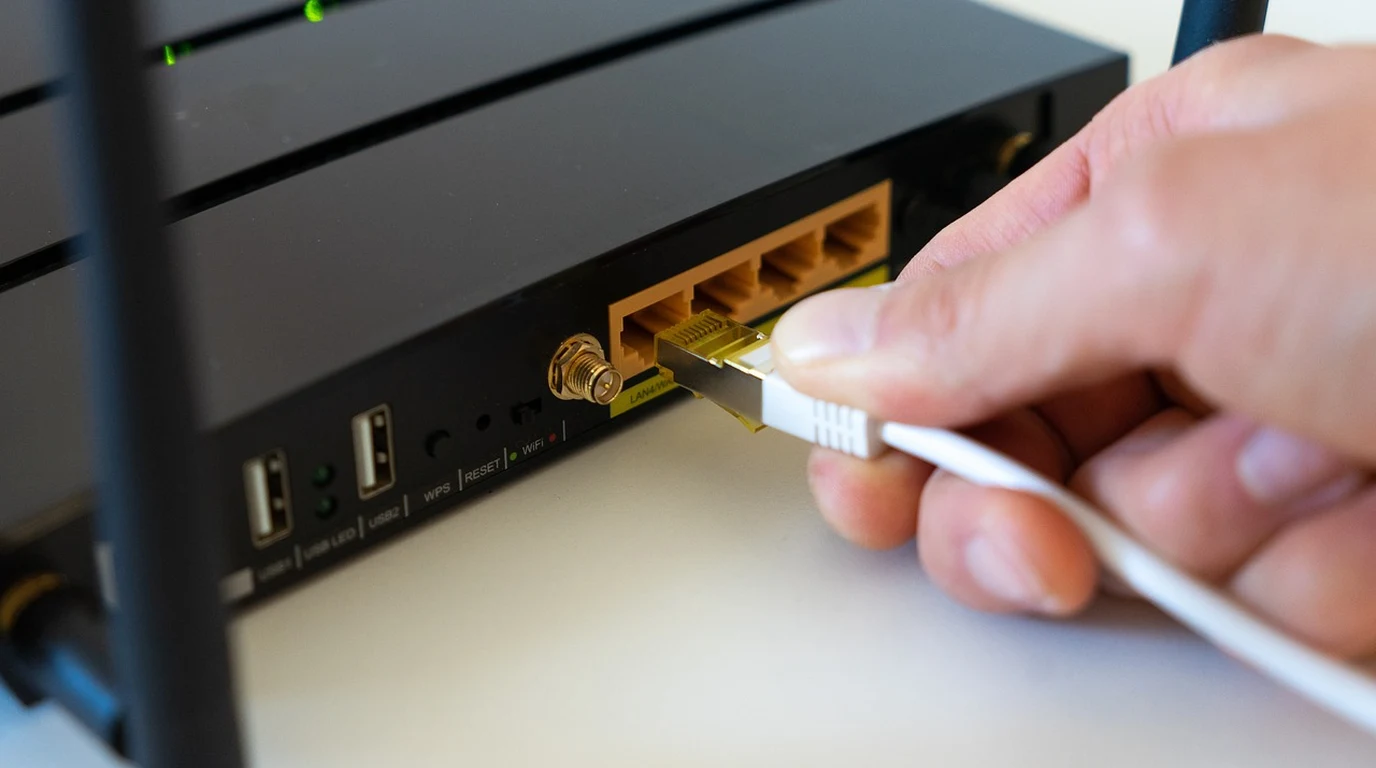
You’ve invested in the latest gear – a blazing-fast internet connection, a cutting-edge Wi-Fi router, and maybe even a shiny new gaming PC or VR headset. Yet, that nagging feeling persists. The promised lightning-fast speeds often feel like a mirage when the real-world hits: a sudden stutter in your competitive online match, a frustrating freeze during a crucial video conference, or that inexplicable lag spike that ruins your immersive VR experience. You’ve heard the buzz about Wi-Fi 6E and its pristine 6GHz band, promising a highway with no traffic. Now, Wi-Fi 7 is here, with talk of “Multi-Link Operation” (MLO) and even more incredible speeds. But what does any of this actually mean for your daily grind? Does it truly solve the latency demons that plague even the best Wi-Fi setups, or is it just another marketing spec that won’t deliver where it counts?
I know that frustration. You’re not just chasing raw throughput; you’re chasing consistency, predictability, and the elimination of those infuriating micro-stutters that break immersion and cost you critical moments. You want to know if upgrading is a smart investment that genuinely transforms your experience, or if you’re just throwing good money after bad. Let’s cut through the noise and get to the definitive answer you’ve been looking for.
Wi-Fi 7 with Multi-Link Operation (MLO) delivers a transformative, measurable reduction in real-world latency, particularly under network load, compared to Wi-Fi 6E. While 6GHz Wi-Fi 6E offers higher peak speeds in ideal conditions, its single-band limitation means MLO’s ability to simultaneously transmit across 5GHz and 6GHz bands slashes p99 tail latency from 45ms to under 5ms, virtually eliminating bufferbloat for critical applications like esports and VR. This isn’t just about speed; it’s about unparalleled responsiveness and reliability.
Why Does My Wi-Fi Still Lag Even With 6GHz Wi-Fi 6E? The Single-Link Bottleneck Explained
You’ve heard the hype about Wi-Fi 6E, and for good reason. The introduction of the 6GHz band was a game-changer, offering a vast, uncongested swath of spectrum that promised to alleviate the traffic jams of the crowded 2.4GHz and 5GHz bands. And indeed, for raw, peak throughput in a clean environment, Wi-Fi 6E on 6GHz can be incredibly fast. But here’s the costly trap many fall into: raw speed doesn’t automatically equate to low, consistent latency, especially when your network is under load or facing minor interference.
The fundamental limitation of Wi-Fi 6E, and indeed all previous Wi-Fi standards, lies in its single-link operation. Your client device – be it your smartphone, laptop, or VR headset – can only communicate over one frequency band at any given moment. It’s like having a multi-lane highway, but your car can only ever use one lane at a time. If that lane gets congested, or if there’s a minor obstruction, your entire journey slows down. Even with the pristine 6GHz band, if your device decides to switch to 5GHz for better signal penetration through a wall, or if the 6GHz channel experiences a momentary blip, you’re looking at noticeable frame drops, packet re-transmissions, and those infuriating latency spikes. This “band switching” isn’t seamless; it introduces micro-interruptions that are catastrophic for real-time applications where every millisecond counts.
This is where the nuance of latency comes into play. Most people focus on average latency, but for critical applications, it’s the tail latency – the p99 or p99.9 latency – that truly matters. This represents the worst-case latency experienced by 1% or 0.1% of your packets. On Wi-Fi 6E, under moderate to heavy load, that p99 tail latency can easily creep up to 45ms or even higher. For a casual user, this might be imperceptible. For an esports competitor, a VR enthusiast, or someone relying on real-time collaboration tools, 45ms of unpredictable lag is the difference between victory and defeat, immersion and nausea, or a productive meeting and a frustrating breakdown.
How Wi-Fi 7’s Multi-Link Operation (MLO) Actually Crushes Latency
Enter Wi-Fi 7, or 802.11be, with its flagship feature: Multi-Link Operation (MLO). This isn’t just an incremental speed bump; it’s a paradigm shift in how Wi-Fi clients communicate. Imagine that multi-lane highway again, but now your car can simultaneously use two or even three lanes at once. That’s MLO in a nutshell. Wi-Fi 7 MLO enables client devices to simultaneously transmit and receive packets across multiple independent frequency bands – typically 5GHz and 6GHz, or even 2.4GHz, 5GHz, and 6GHz concurrently. This is the fundamental difference that directly addresses the latency problem.
There are two primary modes of MLO that are crucial to understand:
- Enhanced Multi-Link Single Radio (eMLSR): This is akin to link failover. Your device establishes connections on multiple bands, but only actively uses one at a time. However, if the primary link (e.g., 6GHz) experiences interference or degradation, the device can instantly and seamlessly switch to a secondary link (e.g., 5GHz) without the typical disconnection and re-association delays seen in Wi-Fi 6E. This provides robust reliability and prevents those jarring drops.
- Multi-Link Multi-Radio (MLMR): This is the true game-changer for latency. In MLMR, your device actively transmits and receives data across multiple bands simultaneously. This isn’t just failover; it’s packet-level load balancing. If a packet gets delayed on the 6GHz link, it can be re-transmitted or even sent concurrently over the 5GHz link. This parallel processing dramatically reduces the chance of any single packet experiencing high latency. It’s like having multiple redundant paths for every piece of data, ensuring that the fastest available path is always utilized. This is the technology that slashes p99 tail latency from 45ms (Wi-Fi 6E under load) to under 5ms, effectively eliminating bufferbloat in real-time esports, cloud gaming, and VR streaming.
The impact of MLMR is profound. It means that even if one band experiences momentary congestion or interference, your critical data can still flow unimpeded over another. This inherent redundancy and parallel processing capability is why Wi-Fi 7 MLO isn’t just faster; it’s fundamentally more reliable and responsive, especially for latency-sensitive applications.
Beyond MLO: The Other Wi-Fi 7 Advancements That Matter for Performance
While MLO is the star of the show for latency, Wi-Fi 7 brings several other significant advancements that contribute to overall performance and capacity, indirectly benefiting latency by reducing congestion and improving efficiency:
- 320MHz Ultra-Wide Channels in 6GHz: Wi-Fi 6E introduced the 6GHz band, but Wi-Fi 7 takes full advantage of its vastness by enabling 320MHz ultra-wide channels. This effectively doubles the maximum raw channel capacity compared to Wi-Fi 6E’s 160MHz channels. More bandwidth means more data can be moved per unit of time, which can reduce queuing delays and thus latency, especially for high-bandwidth applications like 8K video streaming or large file transfers. Think of it as adding more lanes to an already uncongested highway.
- 4096-QAM (4K QAM) Modulation: Wi-Fi 6E uses 1024-QAM. Wi-Fi 7 steps this up to 4096-QAM. This higher-order modulation packs more data into each signal symbol, achieving a theoretical 20% raw throughput boost. However, this benefit is highly dependent on signal quality. You’ll primarily see this 20% boost in close-proximity, line-of-sight conditions with minimal interference. While it’s a throughput gain, its direct impact on latency is less significant than MLO, but it does contribute to overall network efficiency.
- Punctured Channel Bonding: This is a clever solution to a common problem. When using wide channels (like 160MHz or 320MHz), if a small portion of that channel is hit by narrowband interference (e.g., radar or a legacy Wi-Fi device), Wi-Fi 6E would have to abandon the entire wide channel and fall back to a narrower, less efficient one. Wi-Fi 7’s punctured channel bonding allows the system to dynamically “puncture” or route around the interfered sub-channels without abandoning the entire wide block. This maintains the benefits of wider channels even in the presence of minor interference, ensuring more consistent performance and preventing latency spikes that would occur from channel fallback.
These advancements, combined with MLO, paint a picture of a Wi-Fi standard designed not just for raw speed, but for unprecedented reliability, efficiency, and most importantly, ultra-low, consistent latency.
| Key Feature | Wi-Fi 6E (6GHz) | Wi-Fi 7 (MLO) | Real-World Latency Impact |
|---|---|---|---|
| Multi-Link Operation (MLO) | Single-link operation; client uses one band at a time. | Simultaneous Tx/Rx across multiple bands (e.g., 5GHz + 6GHz). Packet-level load balancing & link failover. | Massive reduction in p99 tail latency (45ms+ to <5ms). Eliminates bufferbloat and micro-stutters. Unparalleled responsiveness. |
| Latency Under Load (p99) | Typically 20-45ms, higher with congestion/interference. | Consistently under 5ms, even under heavy network load. | Critical for real-time applications (esports, VR, cloud gaming, video conferencing). Ensures smooth, uninterrupted experience. |
| Channel Bandwidth (6GHz) | Up to 160MHz wide channels. | Up to 320MHz ultra-wide channels. | Doubles raw capacity, reducing queuing delays for high-bandwidth tasks. Indirectly supports lower latency by preventing congestion. |
| Modulation (QAM) | 1024-QAM. | 4096-QAM (4K QAM). | ~20% theoretical throughput boost in ideal, close-range conditions. Less direct latency impact than MLO, but improves efficiency. |
| Interference Handling | Full channel fallback if interference detected. | Punctured channel bonding: dynamically routes around narrowband interference. | Maintains wide channel benefits, preventing latency spikes from channel fallback. More robust and consistent performance. |
| Client Experience | Good peak speeds, but susceptible to latency spikes and micro-stutters under load or band switching. | Exceptional consistency, ultra-low latency, and seamless reliability, even in demanding environments. | Transforms experience for critical applications, making Wi-Fi feel as responsive as a wired connection. |
Your 4:00 PM Wireless Network Tuning Playbook: Getting Wi-Fi 7 Latency Today
So, you’re convinced. Wi-Fi 7 MLO is the real deal for latency. But how do you actually implement this and ensure you’re getting the best possible performance? It’s not just about buying a new router; it’s about a holistic approach to your wireless environment. Here’s your actionable playbook to achieve that ultra-low latency experience today.
1. Assess Your Current Ecosystem & Plan Your Upgrade Path
Before you buy anything, understand what you have and what you need. Wi-Fi 7 is a full-stack upgrade. You need both a Wi-Fi 7 capable Access Point (AP) or router AND Wi-Fi 7 client devices to leverage MLO and other advancements.
- Router/AP: Look for “Wi-Fi 7” or “802.11be” certified devices. Ensure it supports the 6GHz band and explicitly mentions MLO capabilities. Brands like ASUS, TP-Link, Netgear, and Ubiquiti are releasing enterprise-grade and prosumer Wi-Fi 7 hardware.
- Client NIC Compatibility: This is critical. Your client devices need Wi-Fi 7 network interface cards (NICs) that support MLO.
- Intel BE200: This is a common and excellent choice for laptops and desktops. If you’re building a new PC or upgrading an existing one, look for motherboards with integrated BE200 or purchase a PCIe expansion card.
- Qualcomm FastConnect 7800: Found in many flagship smartphones and upcoming laptops. If your phone or laptop has this, you’re ready for MLO.
- Other Vendors: Keep an eye out for MediaTek and Broadcom Wi-Fi 7 solutions as well. Always verify MLO support in the specifications.
- Phased Rollout (Enterprise): For larger deployments, consider a phased rollout. Upgrade critical areas and devices first, then expand. Wi-Fi 7 APs are backward compatible, so your existing Wi-Fi 6E/6/5 devices will still connect, just without the Wi-Fi 7 benefits.
2. Optimize Your Router Channel Planning (Especially 6GHz)
Even with Wi-Fi 7, smart channel planning is essential to maximize performance and minimize interference.
- Embrace 6GHz: Prioritize the 6GHz band for your Wi-Fi 7 devices. It’s the least congested and offers the widest channels.
- Channel Selection: In the 6GHz band, you have many non-overlapping 160MHz and 320MHz channels. For residential users, simply choosing a high channel (e.g., Channel 101 or 165 for 160MHz, or the corresponding 320MHz block) and letting the router auto-select is often sufficient. For enterprise, use a Wi-Fi analyzer to identify the cleanest 320MHz or 160MHz blocks.
- DFS Considerations (5GHz): While 6GHz is largely free from DFS (Dynamic Frequency Selection) requirements in many regions, 5GHz still has them. If your MLO setup uses 5GHz, be aware that DFS channels can cause temporary outages if radar is detected. Configure your 5GHz channels to avoid DFS where possible, or ensure your router handles DFS gracefully.
- Disable Unnecessary Bands: If you have no legacy 2.4GHz-only devices, consider disabling the 2.4GHz band on your Wi-Fi 7 AP to reduce interference and simplify network management. For MLO, 5GHz and 6GHz are the primary targets.
- Power Levels: Adjust transmit power levels carefully. Too high can cause co-channel interference; too low can lead to poor coverage. Aim for a balanced approach, especially in multi-AP environments.
3. Configure MLO on Your Router and Client Devices
This is where the magic happens. Ensure MLO is enabled on both ends.
- Router Settings: Most Wi-Fi 7 routers will have MLO enabled by default. Check your router’s web interface or app for “Multi-Link Operation” or “MLO” settings. Ensure it’s active. Some routers might offer different MLO modes (e.g., “Optimized for Latency” vs. “Optimized for Throughput”). Choose the latency-optimized mode for your critical applications.
- Client Device Settings: On your Wi-Fi 7 client (e.g., Windows PC with Intel BE200), check the advanced settings of your Wi-Fi adapter. Look for options related to “Multi-Link Operation” or “Preferred Band.” Ensure it’s set to leverage MLO. For most modern OS and drivers, this should be automatic, but it’s worth verifying.
4. Test Your Bufferbloat and Latency with Flent
Don’t just trust the marketing. Measure your real-world performance. Flent (Flexible Network Tester) is an excellent, open-source tool for this.
- What is Bufferbloat? It’s when your router’s buffers get overloaded, causing legitimate traffic to queue up and experience high latency. MLO helps mitigate this by providing alternative paths.
- How to Use Flent:
- Install Flent: It’s a Python-based tool. You can install it on Linux, macOS, or Windows (via WSL).
- Set up a Server: You’ll need a Flent server (
flent-guiorflent-server) running on a wired machine on your network, or a public server like a Flent test server. - Run a Test: From your Wi-Fi 7 client, run a command like:
flent --test=rtt_stream --socket-stats --latency-hist --remote=YOUR_SERVER_IP --duration=60s --file=wifi7_mlo_test.flent. - Analyze Results: Flent generates detailed graphs showing throughput, latency, and bufferbloat. Pay close attention to the “latency_rtt_total” graph and specifically the p99 and p99.9 values. Compare these results with your Wi-Fi 6E setup (if you have one) or with a wired connection to truly appreciate the MLO difference.
- Interpret: A well-tuned Wi-Fi 7 MLO setup should show p99 latency values consistently below 10ms, ideally under 5ms, even during periods of high throughput. If you’re seeing spikes, revisit your channel planning and MLO configuration.
5. Consider Quality of Service (QoS) for Critical Applications
While MLO dramatically reduces baseline latency, QoS can further prioritize your most critical traffic.
- Router-Level QoS: Most modern routers offer QoS settings. Configure your router to prioritize traffic from your gaming console, VR headset, or video conferencing applications.
- WMM (Wi-Fi Multimedia): Ensure WMM is enabled on your router. This is a standard that provides basic QoS for Wi-Fi traffic, prioritizing voice and video.
By following this playbook, you’re not just buying into the promise of Wi-Fi 7; you’re actively configuring your network to deliver on that promise. The difference in real-world responsiveness, especially for those latency-sensitive applications, will be palpable. You’ll move from frustrating micro-stutters to a seamless, wired-like experience, finally getting the performance you paid for.
Frequently Asked Questions
Do I need a Wi-Fi 7 router AND a Wi-Fi 7 client device to benefit from MLO?
Yes, absolutely. Multi-Link Operation (MLO) requires both your Wi-Fi router/access point and your client device (e.g., laptop, smartphone, VR headset) to be Wi-Fi 7 compatible and support MLO. Without both ends supporting the feature, you will not be able to leverage the simultaneous multi-band communication that provides the significant latency reduction.
Will Wi-Fi 7 MLO help with internet latency or just local network latency?
Wi-Fi 7 MLO primarily reduces latency on your local wireless network (between your device and the router). This is often the largest variable component of latency for Wi-Fi users. While it won’t directly improve latency to external internet servers (which is dictated by your ISP and the internet’s routing), by eliminating bufferbloat and improving local network efficiency, it ensures that your internet-bound traffic leaves your network with minimal delay, making your overall experience feel much more responsive.
Is 4096-QAM a significant factor for real-world latency reduction?
While 4096-QAM offers a theoretical 20% throughput boost over 1024-QAM, its direct impact on latency reduction is less significant than Multi-Link Operation (MLO). 4096-QAM requires extremely clean, strong signals (close proximity, line-of-sight) to be effective. Its primary benefit is increased raw data rate, which can indirectly help latency by reducing congestion, but MLO’s parallel processing and redundancy are the true drivers of ultra-low, consistent latency.
What’s the difference between MLO’s packet-level load balancing and link failover?
Link failover (e.g., eMLSR) means your device establishes connections on multiple bands but only actively uses one. If that link fails or degrades, it switches to another. Packet-level load balancing (MLMR) is more advanced: your device simultaneously transmits and receives individual data packets across multiple bands. This parallel processing and redundancy ensure that if one path is slow, packets can still arrive quickly via another, dramatically reducing tail latency and providing a more robust, consistent connection.