
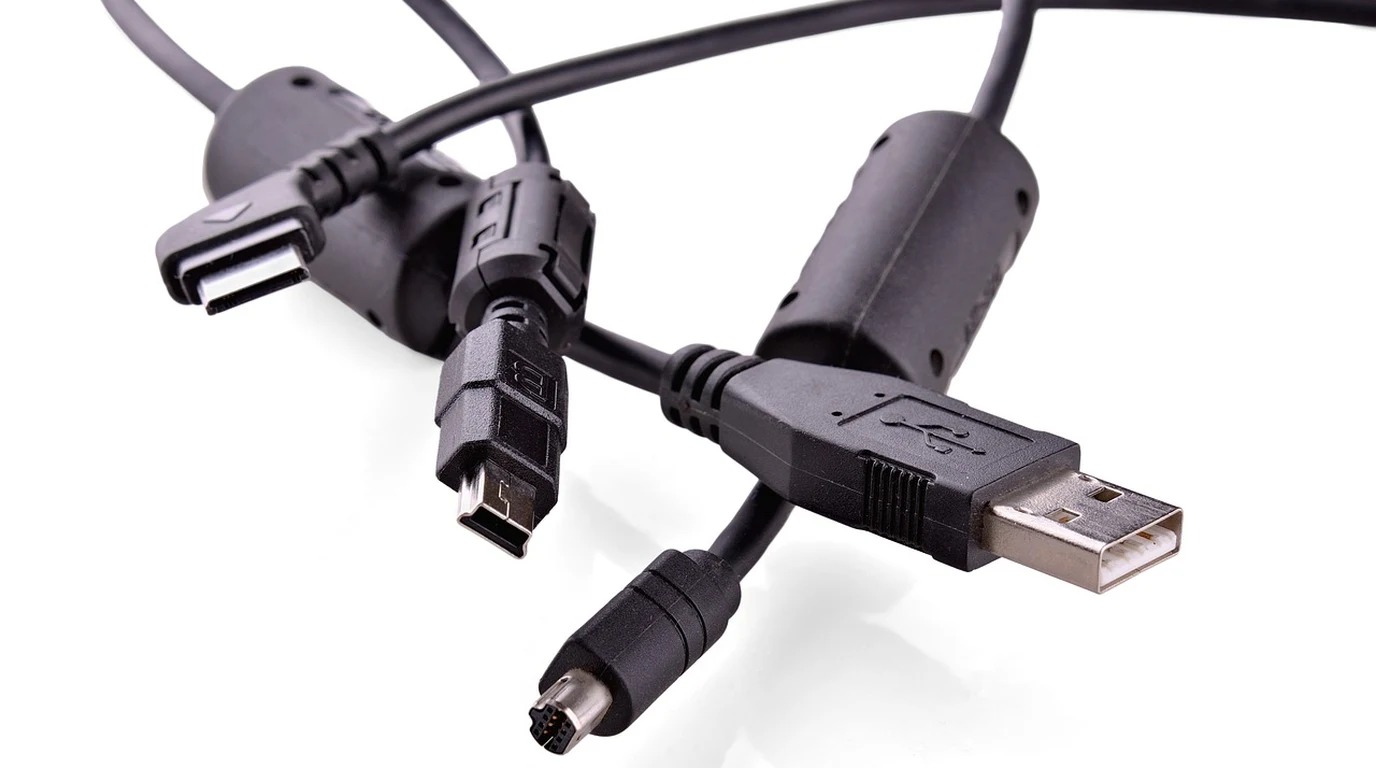
You’ve been there. Staring at a tangle of cables, a dock that promised the world but delivered a trickle, and a multi-monitor setup that flickers like a faulty neon sign. You invested in a cutting-edge laptop, a high-refresh-rate display, and maybe even a blazing-fast external NVMe array, only to find the bottleneck isn’t your hardware, but the very connection meant to unify it all. The promise of “universal connectivity” often feels like a cruel joke, leaving you frustrated, anxious about wasted money, and constantly second-guessing your tech choices.
The confusion between USB4, Thunderbolt 4, and now the new wave of USB4 2.0 and Thunderbolt 5 is more than just academic; it’s a direct hit to your productivity and your wallet. You need to know if that expensive new dock will actually drive your dual 8K monitors, or if your external GPU will finally stretch its legs. You need clarity on whether your next laptop purchase will truly unlock the potential of your peripherals, or if you’re just buying into another generation of incremental, often misunderstood, upgrades.
I get it. The stakes are high, and the jargon is dense. But you don’t need another marketing brochure; you need a definitive guide from someone who’s been in the trenches. Let’s cut through the noise and give you the actionable intelligence you need to make the right decisions, today.
Thunderbolt 5 is Intel’s premium implementation of the USB4 2.0 specification, guaranteeing the full 120Gbps asymmetric bandwidth, PCIe Gen 4 x4 tunneling, and PAM3 signaling. While USB4 2.0 defines these capabilities, Thunderbolt 5 ensures their robust delivery through certified hardware and Intel’s Barlow Ridge controller, making it the superior choice for demanding professional multi-display, eGPU, and high-speed storage workflows.
Why “More Bandwidth” Isn’t Always What You Think: Decoding PAM3 Signaling
When you hear “120Gbps,” your first thought might be, “Wow, just faster clock speeds!” But that’s where 80% of people miss the crucial innovation. The jump from Thunderbolt 4 (40Gbps) or even the symmetric 80Gbps of USB4 2.0/Thunderbolt 5 to the asymmetric 120Gbps isn’t just about cranking up the frequency. It’s about a fundamental shift in how data is encoded and transmitted across the physical copper wires. This is where Pulse Amplitude Modulation 3-level, or PAM3, enters the picture, and it’s a game-changer.
Historically, high-speed data transfer relied on Non-Return-to-Zero (NRZ) signaling. Think of NRZ like a simple light switch: it’s either “on” (representing a 1) or “off” (representing a 0). Each clock cycle transmits one bit of information. This is straightforward, but as speeds increase, the frequency of these “on/off” transitions becomes incredibly high. Copper traces, especially over longer distances, struggle with these high frequencies. Signals degrade, lose integrity, and you end up with errors or a complete loss of connection. It’s like trying to shout a message across a crowded room – the higher the pitch, the more likely it gets lost in the noise.
PAM3 is a much smarter approach. Instead of just two states (on/off), it uses three distinct voltage levels: high, medium, and low. This means that with each clock cycle, PAM3 can transmit approximately 1.5 bits of information (specifically, 3 bits across two clock cycles, or 1.5 bits per cycle on average). Imagine our light switch now has three positions: fully on, half on, and off. This allows for a significantly higher data throughput without needing to drastically increase the fundamental signaling frequency. By transmitting more data per cycle at a lower effective frequency, PAM3 effectively sidesteps the physical limitations of copper trace high-frequency attenuation. It’s like being able to convey more complex information with fewer, clearer words, making the message easier to understand even in a noisy environment.
This is the core engineering marvel behind the 80Gbps and 120Gbps speeds. It’s not just brute force; it’s elegant efficiency. For you, the user, this means more reliable, faster data transfer over longer passive cables than would ever be possible with NRZ at these speeds, translating directly into smoother video, quicker file transfers, and a more responsive eGPU experience.
The Dynamic Bandwidth Boost: How 120Gbps Asymmetric Really Works for You
Beyond the fundamental signaling, the way Thunderbolt 5 and USB4 2.0 manage bandwidth is another critical differentiator. Both standards establish a robust bidirectional 80 Gbps symmetric baseline. This means you get 80 gigabits per second in both directions simultaneously, which is already double Thunderbolt 4’s capability. For most users, this symmetric 80Gbps is more than enough for everyday tasks, including driving a couple of 4K monitors and transferring files.
However, the real magic, and where Thunderbolt 5 truly shines, is its dynamic asymmetric bandwidth allocation. This allows the connection to dynamically shift its bandwidth distribution to an impressive 120 Gbps in one direction (transmit, from host to device) and 40 Gbps in the other (receive, from device to host). This isn’t a fixed setting; it’s intelligent and adaptive, responding to your real-time workflow demands.
Consider your typical high-demand scenarios:
- Multi-Monitor Workflows: If you’re driving multiple high-resolution displays (e.g., dual 8K monitors at 60Hz, or triple 4K monitors at 144Hz), the vast majority of data flow is outbound from your laptop to the displays. In this scenario, the connection can dynamically allocate 120Gbps for display output, ensuring buttery-smooth visuals without compression artifacts or latency. The 40Gbps inbound is still ample for keyboard, mouse, and other peripheral data.
- External GPUs (eGPUs): For serious gamers or creative professionals using an eGPU, the primary data flow is from the host (your laptop) to the eGPU (sending rendering commands and textures) and then back from the eGPU to the host (sending the rendered frames for display). While the display output often goes directly from the eGPU, the initial data exchange is crucial. The 120Gbps transmit capability ensures your eGPU gets the data it needs to perform optimally, minimizing bottlenecks that plague previous generations.
- High-Speed Data Ingestion: While less common for the 120Gbps transmit focus, imagine a scenario where you’re rapidly ingesting data from a high-speed camera or specialized sensor array directly into your system. The 40Gbps receive is still substantial, but the asymmetric mode prioritizes the outbound display data.
This dynamic allocation is a sophisticated engineering feat that directly addresses the real-world needs of power users. It means your connection isn’t just fast; it’s smart, adapting to provide maximum performance precisely where you need it most, preventing those frustrating bottlenecks that can cripple even the most powerful hardware setups.
PCIe Gen 4 x4 Tunneling: Unlocking True External Performance
Here’s another critical area where Thunderbolt 5 and USB4 2.0 elevate the game, and it’s often overlooked by those fixated solely on raw bandwidth numbers: dedicated PCIe tunneling. Previous generations, like Thunderbolt 4 and USB4, offered PCIe Gen 3 x4 tunneling, providing up to 32 Gbps of dedicated PCIe throughput. While good, this could still be a bottleneck for the most demanding external devices.
Thunderbolt 5 and USB4 2.0 double this, offering PCIe Gen 4 x4 tunneling, which translates to a staggering 64 Gbps of dedicated PCIe throughput. This isn’t just “more bandwidth”; it’s a direct, high-speed lane to your system’s CPU and memory, bypassing many of the traditional USB overheads. Why does this matter so profoundly?
- External NVMe Arrays: For professionals working with massive video files, high-resolution images, or large datasets, external NVMe SSDs are indispensable. With PCIe Gen 4 x4, you can now connect multi-drive NVMe enclosures that truly saturate the drives’ capabilities, approaching internal SSD speeds. Imagine editing 8K video directly from an external array without a stutter, or running complex simulations with data stored externally. This 64 Gbps link ensures your storage isn’t the bottleneck.
- External Graphics Cards (eGPUs): While the dynamic 120Gbps bandwidth helps with display output, the dedicated PCIe lane is crucial for the eGPU itself. A graphics card needs a fast, low-latency connection to the CPU to exchange data, textures, and commands. Doubling the PCIe bandwidth from 32Gbps to 64Gbps significantly reduces the performance penalty associated with external GPUs, bringing their performance much closer to internal desktop-class cards. This is a massive win for mobile workstations and gaming laptops that need a boost when docked.
- Specialized Peripherals: Beyond storage and GPUs, many professional peripherals, like high-speed capture cards, audio interfaces, or scientific instruments, rely on PCIe for optimal performance. The increased bandwidth and dedicated nature of PCIe Gen 4 x4 tunneling ensure these devices can operate at their full potential, without being starved for data.
This dedicated PCIe throughput is a silent workhorse, often overshadowed by the headline-grabbing 120Gbps figure, but it’s arguably just as, if not more, impactful for professional and enthusiast users who demand uncompromising performance from their external hardware. It’s the difference between a fast highway and a dedicated express lane directly to your destination.
The Costly Trap & Nuance Matrix: Thunderbolt 5 vs. USB4 2.0
This is where many practitioners and consumers get tripped up. On paper, both Thunderbolt 5 and USB4 2.0 boast the same headline speeds and core technologies like PAM3 and PCIe Gen 4 x4. So, are they the same? Not quite. Understanding the subtle but critical differences is key to avoiding costly compatibility traps and ensuring you get the performance you expect.
The core distinction lies in their nature: USB4 2.0 is a specification from the USB-IF (USB Implementers Forum), defining a set of capabilities that manufacturers can implement. Thunderbolt 5, on the other hand, is Intel’s implementation of that specification, adding a layer of mandatory features, rigorous certification, and often, specific hardware requirements (like their Barlow Ridge controller) that guarantee the full experience.
Think of it this way: USB4 2.0 is the blueprint for a high-performance sports car. It outlines the engine size, the suspension, and the top speed. Thunderbolt 5 is a specific model from a renowned manufacturer that guarantees it meets or exceeds every aspect of that blueprint, includes all the premium features, and comes with a comprehensive warranty. A generic USB4 2.0 device might meet the minimum requirements, but it might not include the dynamic 120/40Gbps asymmetric mode, or it might have a less optimized PCIe implementation. Thunderbolt 5 will.
This nuance extends to host controllers and cables. Thunderbolt 5 hosts will exclusively use Intel’s Barlow Ridge controller, ensuring full feature parity and performance. USB4 2.0 hosts, however, can use controllers from various manufacturers (like ASMedia), which may or may not implement every optional feature of the USB4 2.0 specification. Similarly, while a Thunderbolt 5 cable is guaranteed to support all features, a generic “USB4 2.0” cable might not be certified to the same stringent standards, potentially leading to performance degradation or compatibility issues, especially over longer lengths.
Here’s a breakdown of the key differences and what they mean for you:
| Feature | Thunderbolt 5 (Intel Barlow Ridge) | USB4 2.0 (Generic Controller) | Key Differentiator / Impact for Users |
|---|---|---|---|
| Max Bandwidth (Symmetric) | 80 Gbps Bidirectional | 80 Gbps Bidirectional | Baseline performance is identical; significant upgrade from 40Gbps. |
| Max Bandwidth (Asymmetric) | 120 Gbps Transmit / 40 Gbps Receive (Dynamic) | Optional 120 Gbps Transmit / 40 Gbps Receive | Thunderbolt 5 guarantees this critical feature for multi-display/eGPU. USB4 2.0 implementations may omit it. |
| Signaling Protocol | PAM3 (Pulse Amplitude Modulation 3-level) | PAM3 | Both leverage PAM3 for higher data density over copper, enabling these speeds. |
| PCIe Tunneling | PCIe Gen 4 x4 (up to 64 Gbps dedicated) | PCIe Gen 4 x4 (up to 64 Gbps dedicated) | Doubles previous gen, crucial for eGPUs and external NVMe arrays. Guaranteed on TBT5. |
| Display Support | Dual 8K @ 60Hz, Triple 4K @ 144Hz (with DSC) | Similar capabilities, but dependent on controller implementation. | Thunderbolt 5’s guaranteed asymmetric bandwidth ensures optimal multi-display performance. |
| Host Controller | Intel Barlow Ridge (Mandatory) | Various (e.g., ASMedia, others) | Intel’s controller ensures full feature set and performance consistency for TBT5. Generic controllers may vary. |
| Cable Requirements | Thunderbolt Certified (Passive up to 1m, Active for 2m+) | USB-IF Certified (Passive up to 1m, Active for 2m+) | Certification is key. TBT5 cables are rigorously tested to ensure full performance. |
| Ecosystem & Certification | Intel Thunderbolt Certified (Premium, Guaranteed Performance) | USB-IF Certified (Broader, Variable Implementation) | Thunderbolt 5 offers a more predictable, premium experience due to stricter certification. |
Navigating the Cable Labyrinth: Passive vs. Active and Length Limitations
Cables are often the unsung heroes or the silent saboteurs of high-speed connectivity. With Thunderbolt 5 and USB4 2.0 pushing 80Gbps and 120Gbps, the quality and type of cable become paramount.
- Passive Cables: These cables rely solely on the copper wires to transmit signals. They are generally less expensive and perfectly adequate for shorter lengths. For Thunderbolt 5 and USB4 2.0, passive cables typically support full performance up to about 1 meter. Beyond that, signal degradation becomes a significant issue at these extreme speeds.
- Active Cables: For longer runs (typically 2 meters or more), you’ll need active cables. These cables incorporate tiny integrated circuits (ICs) within the connectors that regenerate and boost the signal, ensuring its integrity over longer distances. This active circuitry adds to the cost, but it’s essential for maintaining peak performance. Without an active cable for longer distances, you’ll experience reduced speeds, intermittent connectivity, or even complete failure.
Always look for certified cables. For Thunderbolt 5, this means the distinctive Thunderbolt logo with the number “5” or “80Gbps/120Gbps.” For USB4 2.0, look for the USB-IF certification and explicit mention of “USB4 2.0” and “80Gbps.” Do not skimp on cables; a cheap, uncertified cable can negate the benefits of your expensive host and peripheral hardware.
The Actionable Playbook: Your 4:00 PM Hardware Buying Guide
Alright, it’s 4:00 PM, and you’re ready to make informed decisions. Here’s your step-by-step playbook to navigate the Thunderbolt 5 and USB4 2.0 landscape and build a setup that truly performs.
Step 1: Define Your “Why” – What Do You Really Need?
Before you buy anything, be brutally honest about your workflow. This dictates your requirements:
- Multi-Display Power User: Are you driving dual 8K monitors, or three 4K displays at high refresh rates? Then the 120Gbps asymmetric bandwidth is non-negotiable.
- External GPU Enthusiast/Pro: If an eGPU is central to your setup, prioritize PCIe Gen 4 x4 tunneling above all else to minimize performance bottlenecks.
- High-Speed Storage Warrior: Constantly moving massive files to external NVMe arrays? Again, PCIe Gen 4 x4 is your friend.
- General Productivity/Future-Proofing: If your needs are less extreme but you want longevity, the symmetric 80Gbps of either standard is a solid baseline.
Step 2: Verify Your Host Controller – Know Your Laptop’s Brain
This is crucial. The capabilities of your laptop’s USB-C ports are determined by its host controller. To unlock the full, guaranteed feature set of Thunderbolt 5, you need an Intel Barlow Ridge controller. For USB4 2.0, you might have an ASMedia or other vendor’s controller, which may or may not implement all optional features.
- For Windows Users:
- Press
Windows Key + Xand select “Device Manager.” - Expand “System devices” or “Universal Serial Bus controllers.”
- Look for “Thunderbolt Controller” or “USB4 Host Router.” If it’s Thunderbolt 5, you’ll likely see “Intel Thunderbolt Controller (Barlow Ridge)” or similar. For generic USB4 2.0, it might just say “USB4 Host Router” with a vendor like “ASMedia.”
- Check your laptop’s official specifications page. Look for explicit mention of “Thunderbolt 5” or “USB4 2.0” with 80Gbps/120Gbps capabilities.
- Press
- For macOS Users:
- Click the Apple menu > “About This Mac.”
- Click “System Report…”
- Under “Hardware,” select “Thunderbolt/USB4.” This will show you the capabilities of your ports and the controller in use.
Step 3: Choose Certified Cables – Don’t Gamble on Connectivity
This is where many people make a critical mistake. A cheap, uncertified cable can undermine your entire high-speed setup.
- Look for Certification: Always buy cables explicitly labeled “Thunderbolt 5 Certified” or “USB4 2.0 Certified” with the corresponding logos.
- Length Matters:
- Up to 1 meter: Passive cables are generally fine and more affordable.
- 2 meters or more: You absolutely need an active cable to maintain full performance. These will be thicker and more expensive, but they’re non-negotiable for longer runs.
- Avoid Generic “USB-C” Cables: Many USB-C cables are only rated for USB 2.0 (480Mbps) or USB 3.x (5-10Gbps). They will not work for Thunderbolt 5 or USB4 2.0 speeds.
Step 4: Select the Right Dock – Your Command Center
Your dock is the heart of your peripheral ecosystem. Choose wisely based on your Step 1 needs: