
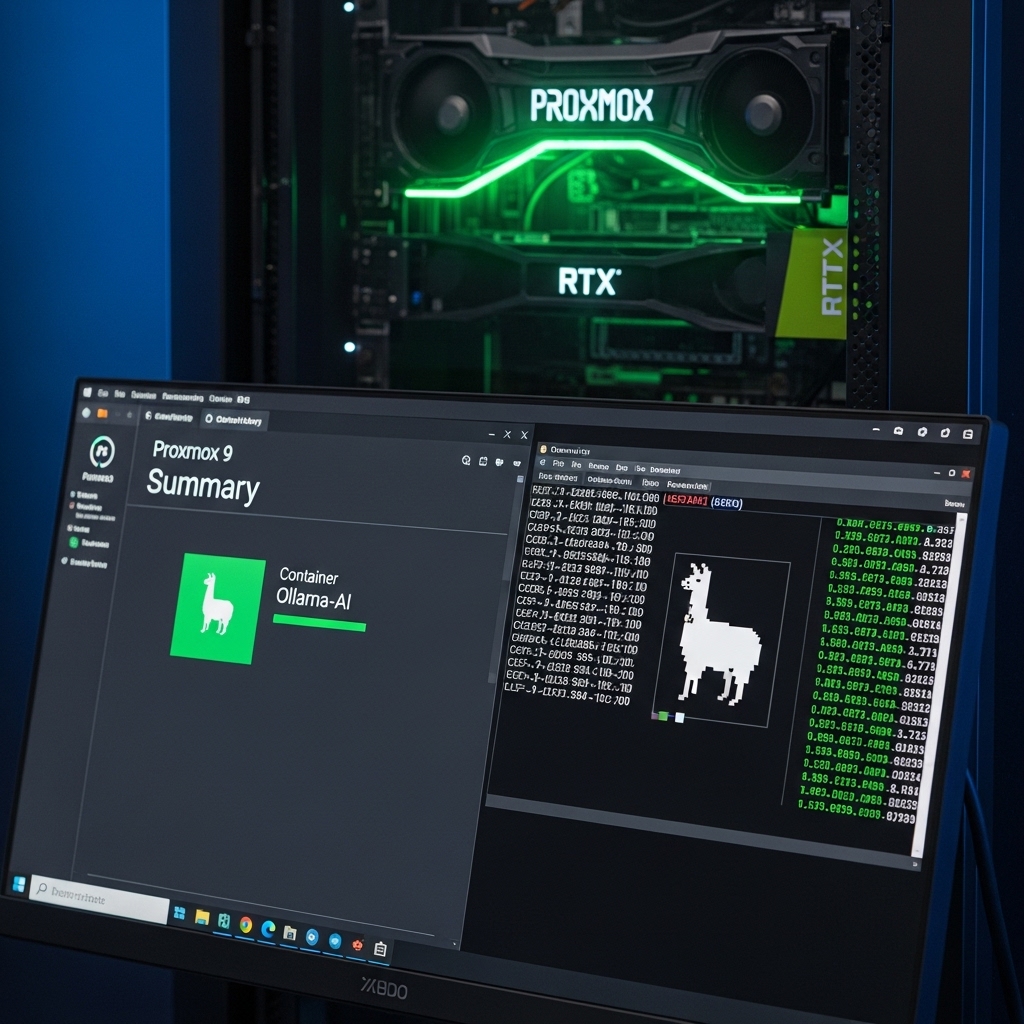
If you have been following our 2026 AI Hardware Guide, you know that VRAM is king. But once you have the hardware, the question is how to host it efficiently. While a Virtual Machine is the easy path, deploying Ollama in a Proxmox LXC (Linux Container) offers near-zero overhead, allowing your RTX 5090 or 5080 to dedicate every cycle to inferencing rather than emulating hardware.
1. Why LXC is the Superior Choice for AI
In a standard VM, there is a “translation layer” between the guest OS and your GPU. In 2026, Proxmox 9.x has perfected Direct GPU Passthrough for containers. By using an LXC, your Ollama instance shares the host’s kernel, which reduces latency and memory pressure. This is especially vital if you are running on an Intel N100, where every megabyte of RAM counts when loading 7B or 14B parameter models.
2. Step-by-Step: Enabling GPU Acceleration
To get Ollama running with full hardware acceleration, you need to map your drivers correctly.
- Host Setup: Install the latest NVIDIA Production Drivers on your Proxmox host.
- Container Config: You must edit the container configuration file (usually in
/etc/pve/lxc/XXX.conf) to include the passthrough for/dev/nvidiactland/dev/nvidia0. - Ollama Install: Run the one-line installer from the Official Ollama site. It will automatically detect the passed-through GPU and initialize the Blackwell or RDNA4 optimization paths.
3. Resource Allocation: CPU vs. GPU Balance
In 2026, the best practice is to set your LXC to “Unprivileged” for security, though this requires extra steps for driver mapping. As an analyst, I recommend monitoring your VRAM-to-System-RAM ratio. If you are running Llama 4 or Mistral Next, ensure your LXC has at least 16GB of system RAM allocated to handle the initial model ingestion before it is offloaded to the GPU’s GDDR7 memory.
2026 Local AI Performance: LXC vs. VM
| Metric | Proxmox LXC (Recommended) | Standard VM |
|---|---|---|
| Inferencing Latency | Minimal (Direct) | Moderate (Emulated) |
| RAM Overhead | ~200MB | ~2GB + Guest OS |
| GPU Utilization | 99.9% Native | ~95% (Driver Overhead) |
People Also Ask (PAA)
Can I run multiple Ollama containers on one GPU?
Yes, but they will share the VRAM. In 2026, NVIDIA’s Multi-Instance GPU (MIG) technology is more accessible, but for most home labs, it is better to run a single Ollama instance and use an API gateway to serve multiple users.
How do I update Ollama in Proxmox?
Since it is an LXC, you can simply enter the container’s shell and run the install script again. It will detect the existing installation and update the binaries while keeping your downloaded models safe in /usr/share/ollama.