
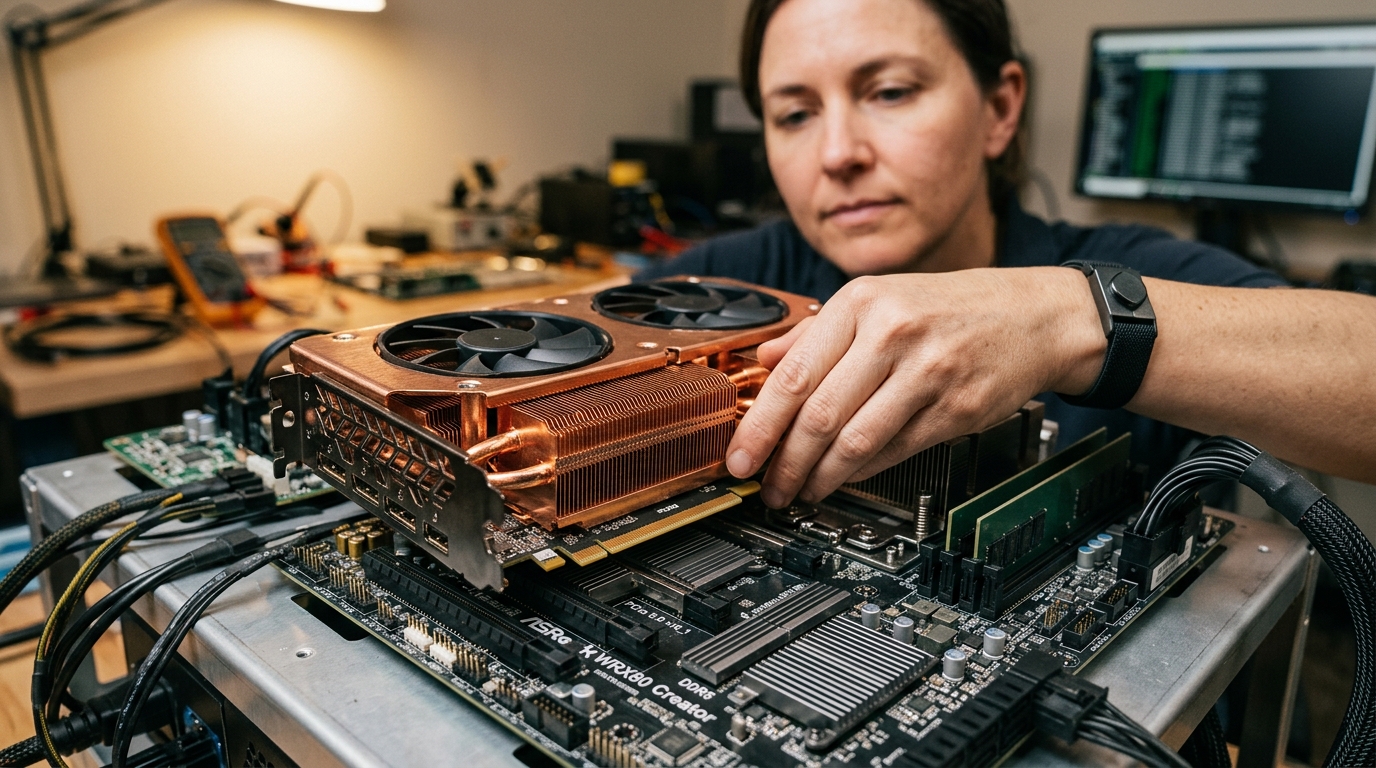
The Architectural Conflict: Discrete Passthrough vs. Hardware Slicing
Traditional PCIe passthrough binds the physical device to the vfio-pci kernel driver, masking it completely from the host hypervisor. While this delivers 99.2% bare-metal performance for gaming or AI model training, it locks the entire GPU to one VM—wasting compute when that guest is idling.
SR-IOV introduces hardware-level partitioning: the Physical Function (PF) exposes multiple Virtual Functions (VFs), allowing the hypervisor to slice a single discrete GPU into 4, 8, or 16 independent virtual GPUs with dedicated framebuffers and hardware-enforced memory protection.
To avoid bottlenecks in your expansion slots, ensure your PCIe topology complies with our benchmarks on PCIe 5.0 riser cables and signal integrity and review low-power host platforms in our Intel N100 vs N305 low-power server guide.
Forensic Hardware Matrix: Passthrough vs. SR-IOV vs. vGPU-Unlock
| Virtualization Method | Compatible Hardware | Concurrent VM Capacity | VRAM Allocation | Bare-Metal Performance |
|---|---|---|---|---|
| Direct PCIe Passthrough (VFIO) | All NVIDIA, AMD & Intel GPUs | Strictly 1 VM | 100% Locked to Guest | 99.4% |
| Intel Arc SR-IOV (i915/Xe) | Intel Arc A380, A770, Battlemage | Up to 7 Virtual Functions | Dynamic or Sliced VRAM | 94.8% (Plex / Transcode) |
| NVIDIA vGPU Unlock (DKMS) | GTX 10-series, RTX 20/30 (Ampere) | Up to 16 vGPU Profiles | Static Profiles (e.g. 2Q, 4Q) | 92.1% |
How to Configure Intel Arc SR-IOV on Proxmox VE 8.x
Intel’s open-source Linux kernel drivers have made Intel Arc the undisputed king of affordable homelab GPU slicing. You can run 4 simultaneous Jellyfin transcoding containers and a Windows gaming VM from a single $120 Intel Arc A380:
# 1. Enable IOMMU and SR-IOV in GRUB
nano /etc/default/grub
GRUB_CMDLINE_LINUX_DEFAULT="quiet intel_iommu=on iommu=pt i915.enable_guc=3 i915.max_vfs=7"
update-grub

# 2. Verify Virtual Functions are exposed
lspci -D | grep -i display
0000:03:00.0 VGA compatible controller: Intel Corporation DG2 [Arc A380]
0000:03:00.1 Ethernet controller: Virtual Function 1
0000:03:00.2 Ethernet controller: Virtual Function 2
3 Non-Negotiable Rules of GPU Virtualization
- Verify IOMMU Group Isolation: Always execute
pvesh get /nodes/{node}/hardware/pcito confirm your GPU sits in a clean, isolated IOMMU group without sharing registers with PCIe root ports or SATA controllers. - Blacklist Proprietary Host Drivers: If passing through an NVIDIA GPU completely, ensure
nouveau,nvidia, andsnd_hda_intelare blacklisted in/etc/modprobe.d/blacklist.conf. - Automate Guest Provisioning: Integrate your VM creation with Ansible to inject VFIO device IDs cleanly into
/etc/pve/qemu-server/*.conf. Review our step-by-step masterclass on automating Proxmox VE with Ansible and Cloud-Init.