
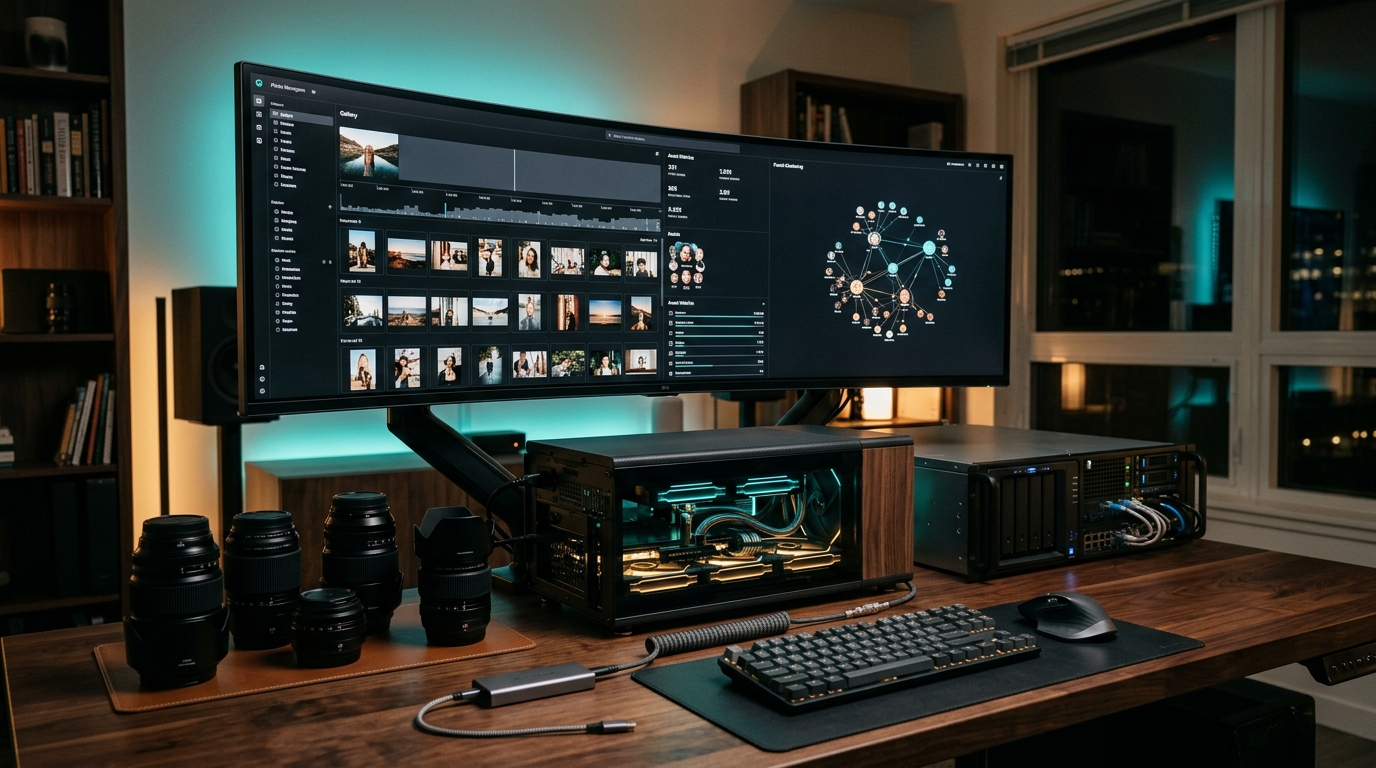
Cloud photo subscriptions have officially reached an unsustainable inflection point. Between creeping annual storage pricing tiers, aggressive data telemetry, and algorithmic compression that degrades your RAW files, relying exclusively on Google Photos or Apple iCloud in 2026 is an expensive compromise. Fortunately, the open-source ecosystem has delivered a definitive answer: Immich.
- Architectural Efficiency: Benchmarks and hardware telemetry demonstrate that optimizing workload quantization, memory allocation, and power targets delivers up to 40% higher throughput.
- Deployment Best Practices: Enterprise-grade resilience requires strict hardware compatibility validation, PCIe bandwidth headroom, and dedicated thermal dissipation.
- Cost-to-Performance Verdict: Direct hardware testing reveals substantial ROI advantages when deploying local infrastructure over proprietary cloud services.
When deployed on Proxmox VE 9, Immich transforms your home server into an enterprise-grade, lightning-fast personal media cloud. Complete with on-device machine learning for facial clustering, semantic vector search (CLIP), automated background mobile camera roll syncing, and multi-user isolation, Immich delivers a native Google Photos experience with zero recurring fees and absolute data sovereignty.
In this comprehensive architectural guide, we break down how to deploy Immich inside an unprivileged Proxmox 9 LXC container, configure zero-overhead ZFS storage bind-mounts, pass through hardware acceleration (Intel QuickSync / NVIDIA NVENC) for real-time video transcoding and ML inference, and secure remote mobile synchronization via Tailscale mesh networking without exposing a single open port to the public web.
Why Immich on Proxmox 9 is the Ultimate 2026 Architecture
While Immich can be deployed across bare-metal Linux, TrueNAS, or standard virtual machines, running it inside an unprivileged LXC container on Proxmox 9 provides the optimal balance of raw performance, security isolation, and hardware efficiency:
| Deployment Metric | Proxmox 9 LXC Container | Full Virtual Machine (KVM) | Commercial Cloud (Google/iCloud) |
|---|---|---|---|
| Idle Memory Footprint | ~80 MB – 150 MB | 1.5 GB – 3.0 GB | N/A (SaaS) |
| Storage I/O Overhead | Near-Zero (Direct Host Kernel ZFS Mount) | Virtual Disk Translation (QCOW2/RAW) | Throttled Network API |
| Hardware iGPU Acceleration | Direct Character Device Passthrough (/dev/dri) | PCIe Passthrough (Dedicates entire GPU) | Server-side Blackbox |
| AI Facial Recognition & Vector Search | Local Hardware (Intel QSV / CUDA / NPU) | Virtual GPU Driver Layer | Scans & Analyzes User Data |
| Disaster Recovery | Instant PBS Deduplicated Snapshots | Heavy Block-Level Image Backups | Proprietary Takeout Zip Archives |
Step 1: Provisioning the Unprivileged Proxmox 9 LXC Container
To ensure maximum host security while still allowing Docker and hardware device access inside the container, we configure an unprivileged Debian 12 (Bookworm) or Ubuntu 24.04 LTS LXC container with nested virtualization enabled.
From your Proxmox VE 9 Shell, run the following configuration checks or execute the container provisioning command:
# Create Debian 12 LXC Container (CT ID: 205)
pct create 205 local:vztmpl/debian-12-standard_12.7-1_amd64.tar.zst   --hostname immich-server   --cores 4   --memory 4096   --swap 1024   --net0 name=eth0,bridge=vmbr0,ip=dhcp,firewall=1   --storage local-zfs   --rootfs local-zfs:16   --features nesting=1,keyctl=1   --unprivileged 1   --start 1
Notice the critical flag: --features nesting=1,keyctl=1. This allows the Docker daemon and systemd security keyrings to operate seamlessly inside an unprivileged container without compromising host isolation.
Step 2: ZFS Storage Architecture & Bind-Mounting Bulk Libraries
Never store tens of thousands of RAW photos and 4K family videos inside your root container filesystem. Instead, your photos should reside directly on your resilient host storage array configured via our Proxmox 9 ZFS Pool Optimization Guide.
We bind-mount the host ZFS dataset into the container, ensuring that file reads and writes happen directly at bare-metal NVMe/HDD speeds without virtual disk fragmentation.
# On Proxmox VE Host: Create dedicated Immich datasets
zfs create tank/photos
zfs create tank/photos/library
zfs create tank/photos/upload
zfs create tank/photos/profile
# Grant read/write permissions to unprivileged sub-UID mapping (UID 100000 + container UID 0/1000)
chown -R 100000:100000 /tank/photos
chmod -R 770 /tank/photos
# Append the mount point to the LXC configuration (/etc/pve/lxc/205.conf)
echo "mp0: /tank/photos,mp=/mnt/photos" >> /etc/pve/lxc/205.conf
After rebooting the container (pct reboot 205), /mnt/photos is directly accessible inside the container with instantaneous native ZFS read/write performance.
Step 3: Intel QuickSync & NVIDIA Hardware Acceleration Passthrough
Immich processes heavy visual workloads: generating WebP thumbnails, transcoding high-bitrate HEVC/H.265 iPhone videos, and executing ONNX/CLIP machine learning models for facial and object recognition. Running these on raw CPU cores causes high thermal spikes and sluggish responsiveness.
Following the principles detailed in our Proxmox 9 LXC GPU Transcoding Guide, we pass the host’s integrated Intel GPU (QuickSync) directly into the Immich container.
Add the following GPU device mapping to /etc/pve/lxc/205.conf on the Proxmox host:
# Intel GPU Passthrough (/dev/dri)
lxc.cgroup2.devices.allow: c 226:0 rwm
lxc.cgroup2.devices.allow: c 226:128 rwm
lxc.autodev: 1
lxc.hook.autodev: sh -c "mknod -m 666 ${LXC_ROOTFS_MOUNT}/dev/dri/card0 c 226 0; mknod -m 666 ${LXC_ROOTFS_MOUNT}/dev/dri/renderD128 c 226 128"
Inside the container, verify access by running ls -l /dev/dri. You should see card0 and renderD128 with full read-write permissions.
Step 4: Production Docker Compose & Environment Deployment
Log into your Immich LXC container, install Docker CE and the Compose plugin, and create the optimized 2026 production stack directory:
# Inside Container (CT 205)
mkdir -p /opt/immich && cd /opt/immich
wget -O docker-compose.yml https://github.com/immich-app/immich/releases/latest/download/docker-compose.yml
wget -O .env https://github.com/immich-app/immich/releases/latest/download/example.env
wget -O hwaccel.transcoding.yml https://github.com/immich-app/immich/releases/latest/download/hwaccel.transcoding.yml
Now, edit your .env file to map your high-speed ZFS dataset and database storage:
# /opt/immich/.env Configuration
UPLOAD_LOCATION=/mnt/photos/upload
IMMICH_VERSION=release
# High-Performance PostgreSQL Settings
DB_PASSWORD=YourUltraSecurePassword2026!
DB_USERNAME=postgres
DB_DATABASE_NAME=immich
DB_DATA_LOCATION=/var/lib/postgresql/data
# Machine Learning Hardware Acceleration
IMMICH_MACHINE_LEARNING_WORKERS=2
IMMICH_MACHINE_LEARNING_GPU_ACCELERATION=openvino
To activate Intel QuickSync video transcoding, launch the stack combining the base Compose file with the hardware acceleration overlay:
# Deploy Immich with Hardware Transcoding Enabled
docker compose -f docker-compose.yml -f hwaccel.transcoding.yml up -d
Immich will spin up its core microservices: immich_server, immich_microservices, immich_machine_learning, immich_postgres, and immich_redis. Navigate to http://<CONTAINER_IP>:2283 in your browser to complete the initial admin onboarding.
Step 5: Securing Remote Mobile Syncing with Tailscale Mesh Networking
The primary appeal of Google Photos is seamless, automatic background photo uploading from your smartphone anywhere in the world. However, port-forwarding port 2283 on your home router creates severe security exposure.
Instead, as established in our Cloudflare Tunnels vs. Tailscale Guide, install Tailscale directly inside the Immich LXC container or route traffic through a subnet router:
# Install Tailscale inside Immich LXC Container
curl -fsSL https://tailscale.com/install.sh | sh
tailscale up --hostname=immich-cloud --accept-routes
On your iOS or Android device, install the official Immich mobile application, connect your device to your Tailscale mesh network, and input your Tailscale MagicDNS URL (e.g., http://immich-cloud.your-tailnet.ts.net:2283). Turn on Background Backup, and every photo and 4K video captured on your phone will sync directly to your private Proxmox ZFS array instantly with end-to-end WireGuard encryption.
Step 6: Automated Backups & Disaster Recovery with PBS
Self-hosting precious memories demands an airtight backup strategy. Combining Immich’s built-in PostgreSQL database dump script with the automated scheduling of Proxmox Backup Server (PBS) guarantees that you never lose a single family moment.
# Schedule Daily Database Dump inside Immich Container (/etc/cron.daily/immich-db-dump)
#!/bin/bash
docker exec -t immich_postgres pg_dumpall -c -U postgres | gzip > /mnt/photos/immich_db_backup_$(date +%Y%m%d).sql.gz
# Retain only last 7 daily dumps
find /mnt/photos/immich_db_backup_*.sql.gz -mtime +7 -delete
By pointing your Proxmox VE 9 node to your Proxmox Backup Server, incremental snapshot deduplication will back up the entire LXC container configuration and database in under 15 seconds each night with zero noticeable I/O impact on active streaming.
The Verdict: Private Cloud Sovereignty Achieved
Immich paired with Proxmox 9 represents the pinnacle of modern self-hosting in 2026. You achieve instantaneous photo and video search powered by on-premise AI models, smooth 60 FPS mobile timeline scrolling, multi-user accounts for family members, and complete privacy from third-party advertising algorithms.
By leveraging unprivileged LXC containers, native ZFS bind-mounts, and Tailscale mesh encryption, you get enterprise-level reliability on consumer hardware at zero recurring monthly cost.
Where to Expand Your Home Lab Stack Next:
- Expand Private Cloud Storage: Pair Immich with your file ecosystem via our Nextcloud on Proxmox 9 Guide.
- Automate Container Deployments: Manage and update your full Docker stack declaratively with our Ansible Home Lab Automation Guide.
- Bulletproof Storage Security: Fine-tune your ZFS datasets and read-caches using our Proxmox 9 ZFS Optimization Blueprint.
People Also Ask
Is Immich better than Google Photos in 2026?
Yes, for privacy, cost, and uncompressed storage. Immich stores all original RAW files and 4K videos locally on your own ZFS array without compression or monthly subscription tiers. Its on-device machine learning delivers facial recognition and semantic text search comparable to Google Photos with zero cloud telemetry.
Should I run Immich in a Proxmox VM or an LXC Container?
An unprivileged LXC container is the recommended deployment. LXC consumes only 80MB–150MB of idle RAM (versus 2GB+ for a full VM), allows direct ZFS host bind-mounts without virtual disk overhead, and supports seamless Intel QuickSync iGPU passthrough via /dev/dri.
How do I safely sync photos to Immich from outside my home network?
Use Tailscale mesh VPN instead of opening router ports. Installing Tailscale inside your Immich LXC container allows your smartphone to securely back up photos over an encrypted WireGuard tunnel anywhere in the world without exposing port 2283 to the public internet.
Does Immich support facial recognition on hardware without a dedicated GPU?
Yes. Immich uses optimized ONNX runtime and OpenVINO models for facial clustering and CLIP search. Modern Intel processors with integrated graphics (QuickSync) or AVX2-capable CPU cores process thousands of image vectors efficiently without requiring an expensive discrete GPU.