
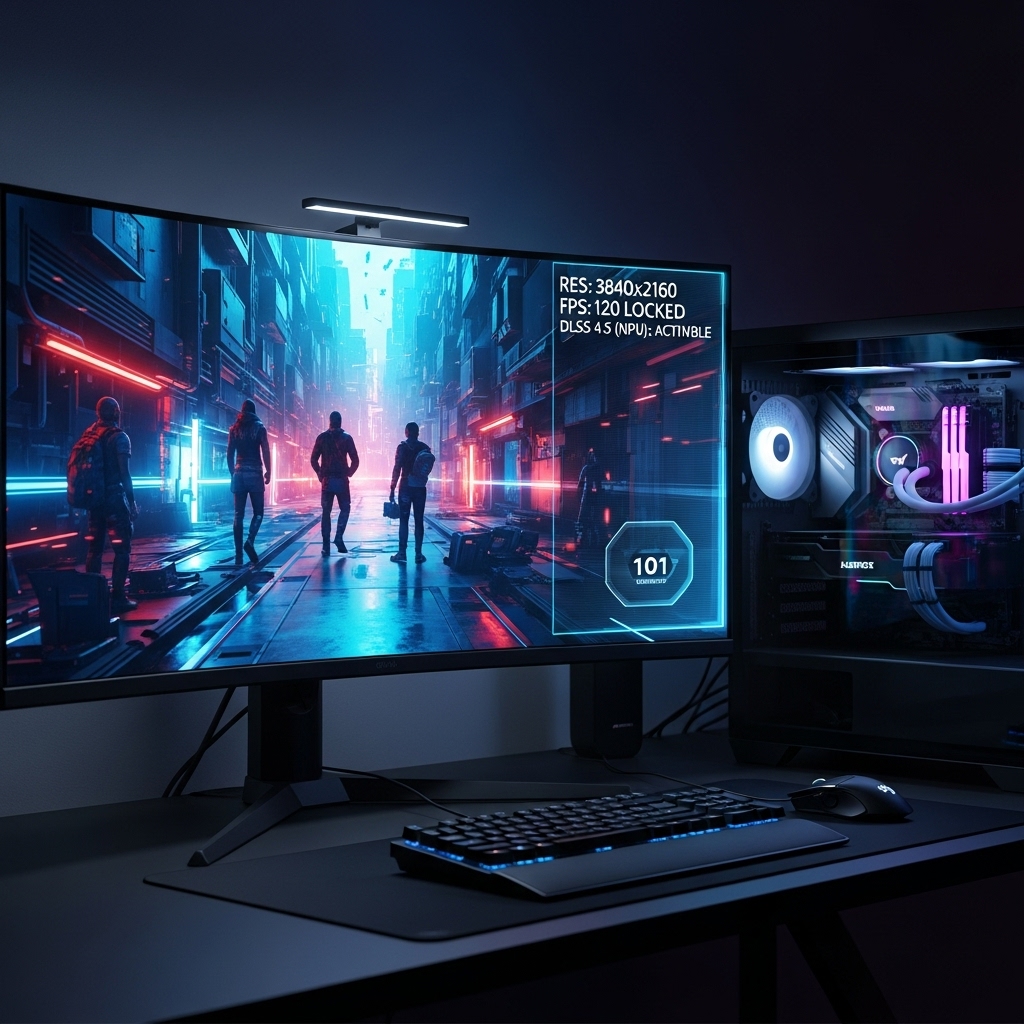
The Ultimate 4K Optimization Guide: Reaching 120Hz in 2026
In 2026, “Ultra” settings are a trap. Modern game engines are now so complex that simply clicking the highest preset often results in unoptimized shader compilation and unnecessary VRAM pressure. To get the most out of your high-end display, you need to understand the Golden Ratio of performance vs. visual fidelity. This guide focuses on the technical tweaks that move the needle without softening your image.
1. NPU-Assisted Frame Generation: The New Baseline
If you are running a Blackwell-based GPU like the NVIDIA RTX 50-series, the single most important setting is NPU-Assisted Frame Generation. As we noted in our RTX 5080 vs. RX 9070 XT comparison, the 2026 implementation uses a dedicated Neural Processing Unit to handle motion vectors. This eliminates the “UI Ghosting” that plagued earlier versions. For 4K gaming, enabling this alongside DLSS 4.5 Quality Mode is now the standard for achieving a locked 120Hz or 240Hz experience on high-end OLED panels.
2. Managing the VRAM “Cliff”
Niche enthusiasts know that stuttering in 4K is rarely a raw power issue—it is usually a VRAM Cache issue. In 2026, many titles use “unlimited” texture streaming. If your GPU hits 95% VRAM usage, your frame times will spike as the system swaps data to the slower system RAM. The Fix: Set “Texture Pool Size” to exactly 2GB below your total VRAM. On a 16GB card, cap it at 14GB. This headroom allows the Windows OS and background apps to breathe, preventing the micro-stutter that ruins high-refresh immersion on monitors like the MSI MPG 321URX.
3. The “Heavy” Settings: Volumetric Clouds and Path Tracing Denoisers
Two specific settings kill more frames in 2026 than any other. Volumetric Clouds: In 4K, “Ultra” clouds use 4x the samples of “High” but look virtually identical in motion. Dropping this one setting can yield a 15% FPS boost. Path Tracing Denoisers: If you use Ray Tracing, ensure your “Denoising Strength” is set to “Hardware Accelerated.” Relying on software denoisers adds significant latency to your mouse input, making 4K gaming feel “heavy.” If you are on the Red Team, ensure you are utilizing the latest AMD Radeon Software optimizations for RDNA 4 architecture.
2026 Optimization Scorecard: Visuals vs. Performance
| Setting | Recommended | Performance Gain |
|---|---|---|
| Upscaling | DLSS/FSR Quality | +45% FPS |
| Volumetrics | High (Not Ultra) | +15% FPS |
| Texture Pool | Total VRAM minus 2GB | Stutter Reduction |
| Reflections | Hardware RT / SSR High | Visual Stability |
People Also Ask (PAA)
Does 4K gaming require 32GB of system RAM in 2026?
While 16GB is the bare minimum, 32GB is highly recommended for 4K gaming. This prevents the system from dipping into the page file when the GPU VRAM is full, leading to a much smoother multitasking experience.
Is DLSS 4.5 better than native 4K?
In many 2026 titles, yes. Because of advanced temporal reconstruction, DLSS 4.5 Quality Mode often produces less “shimmer” on fine details like power lines or foliage compared to native 4K with standard TAA.
How do I fix 4K stuttering on an OLED monitor?
Ensure G-Sync/FreeSync is enabled and your frame rate is capped 3 FPS below your refresh rate (e.g., 237 FPS for a 240Hz screen). This ensures you stay within the VRR window and eliminates the “V-Sync lag” that is highly noticeable on OLEDs.